If your machine does not start sewing when pressing the green Start Button, follow the steps below:

1. If you are using the Simplified User Interface, you will need additional technical assistance. Here are the available Melco Technical Support options.
2. Verify the Emergency-Stop Button is not engaged. Turn the Emergency-Stop button to the right (clockwise) to disengage. Then test if your machine will begin sewing.

3. Check for any error messages in the Log. If you are using the Simplified User Interface, you might need to switch to the Advanced OS.
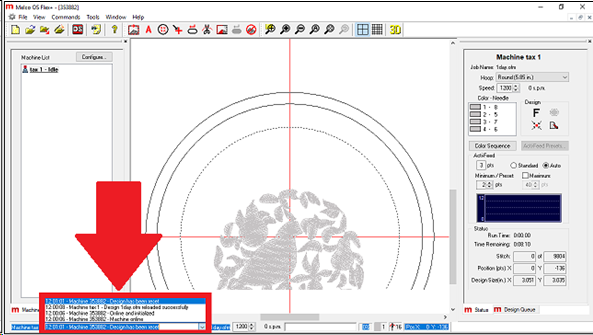
- If you are receiving the error message ‘Unable to home trimmer’, you will need additional technical assistance. Here are the available Melco Technical Support
- If you are receiving the error message ‘Cutter Stepper Index Error’, you will need additional technical assistance. Here are the available Melco Technical Support
4. You may need to clear and reset your color sequence in the Melco OS.
- Click the Color Sequence button.
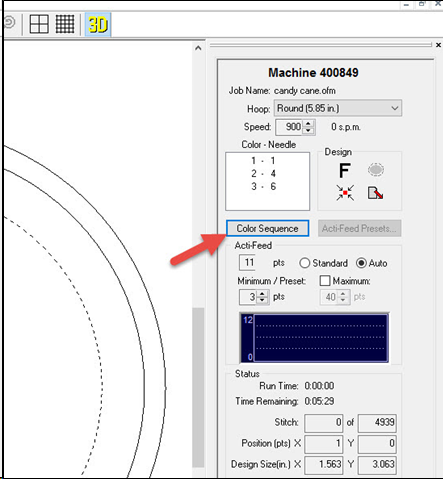
- Click the Clear All It is important that you Do Not click the Apply button at the bottom of this screen.
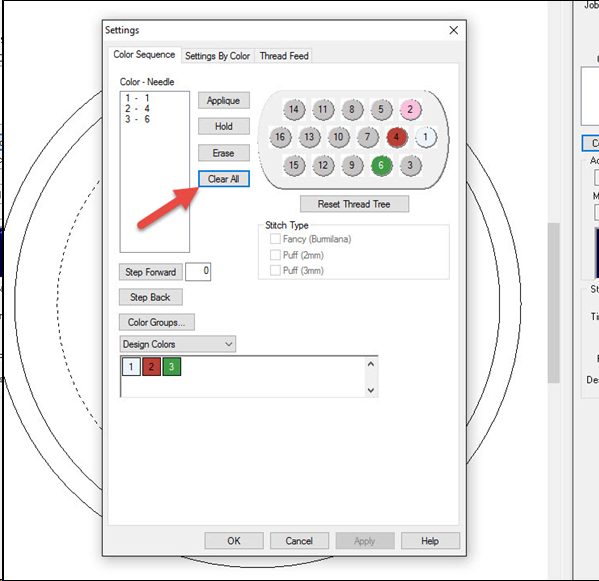
- Now, assign the Color Sequence as you normally would.
- Click Apply.
- Try to sew.
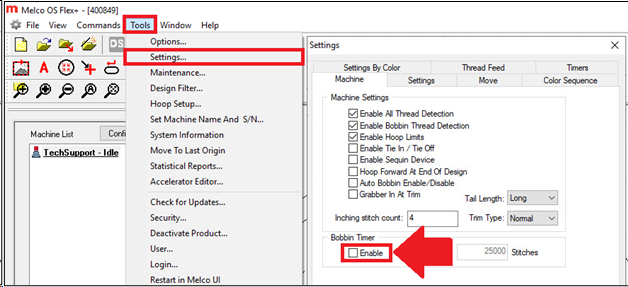
5. Make sure the Bobbin Timer hasn't been set and elapsed. Under Tools > Settings > uncheck Bobbin Timer, and test if the machine will sew.
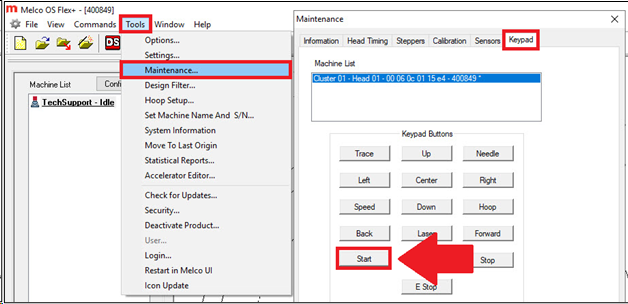
6. Go to Tools > Maintenance > Keypad and test the Start Button. If pushing the start button does not highlight it on the computer screen, it's likely a physical issue with the button. It might be pressed in too far, wiggle it to see if it releases.

7. Check for a Z Bind.
8. Power Cycle the machine. When the machine is turned back on you might get an error message, for example Y motor over current error. Check the Log again for any errors. You can search for error messages in the Melco Technical Support Knowledgebase for steps to resolve the issue.
9. If the situation remains unresolved, you will need additional technical assistance. Here are the available Melco Technical Support options.